

Discord Server Schedule - How to Share a Schedule in Your Server
Published at Tue Oct 13 2026
Every active Discord server eventually needs a schedule: game nights, stream times, classes, office hours or team meetings. Most servers start with a pinned message, and most pinned messages are out of date within a month. Here are the options, from simplest to most reliable.
Option 1: A pinned message
Write the schedule in a message and pin it. It costs nothing and takes a minute. The downsides are that someone has to edit it by hand, it does not show the right time for members in other time zones, and members tend to forget it exists.
Option 2: Discord Events
Discord’s built-in Events feature lets you create events with a date, a location or voice channel, and an “Interested” button. This works well for one-off events. For a recurring weekly schedule, you will be creating events repeatedly.
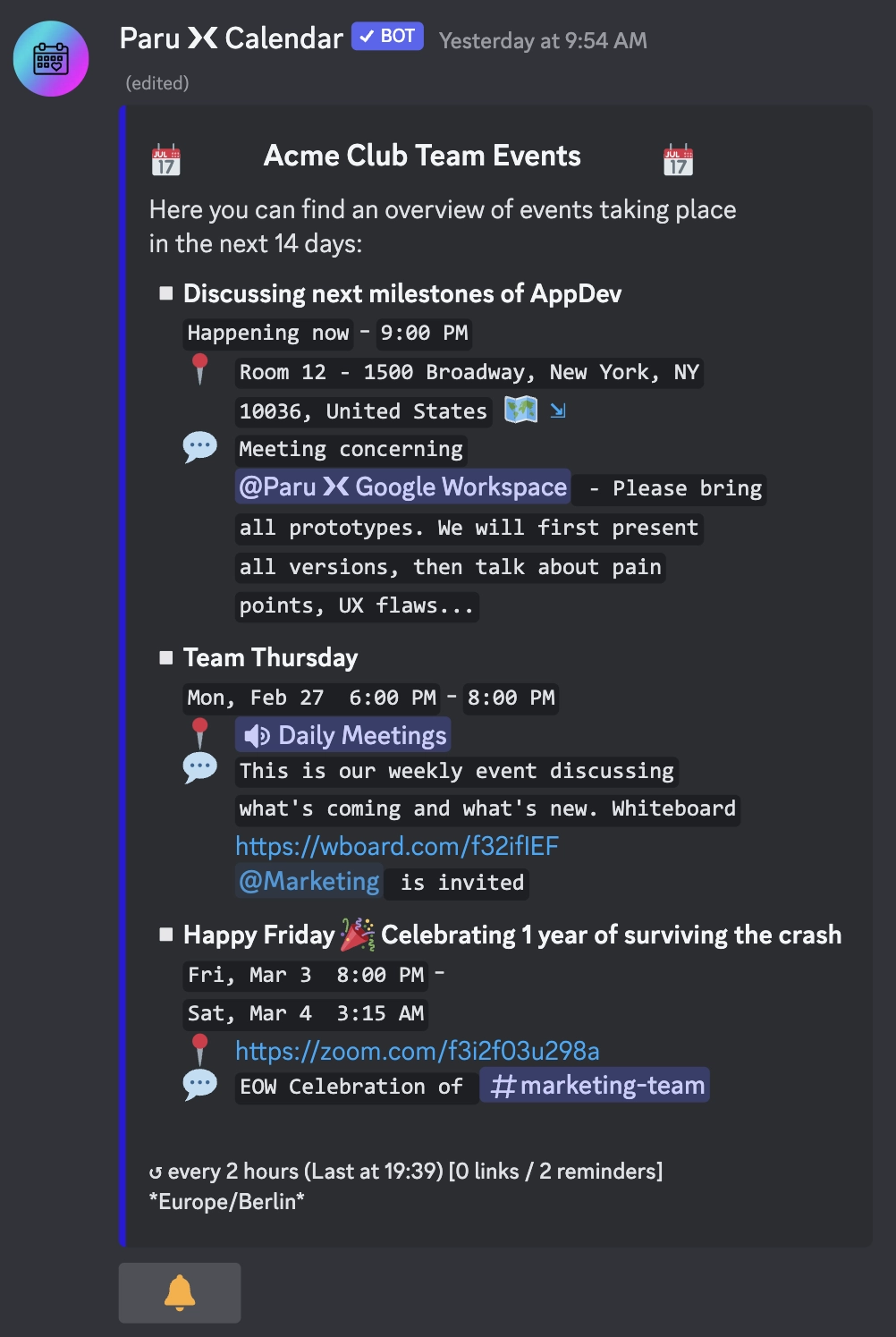
Option 3: A self-updating calendar message
Keep the schedule in a calendar app you already use, such as Google Calendar, and let a bot display it in a channel. The message updates itself, so the schedule is always current:
- Add Paru and run
/paru createin a dedicated#schedulechannel. - Link your calendar with
/paru link. - Choose how many days ahead to show, and which fields (end time, location, description) to display with
/paru modify.
PM & Channel reminders
Timezone-native. Fully customizable.
2-Way- Discord Events sync
25 language support. Mobile-optimized.
Tips for a good schedule channel
- Use one channel only for the schedule so the calendar message does not get buried. Set the channel so that only the bot can post.
- Set the calendar’s time zone with
/paru timezoneand mention it in the channel topic. On premium plans you can turn on dynamic times with/paru modify, so every member sees events in their own local time. See time zones for Discord events. - Add reminders for roles that need to show up. See Discord event reminder bot.
- Name your events clearly, since the event title is what members see first.